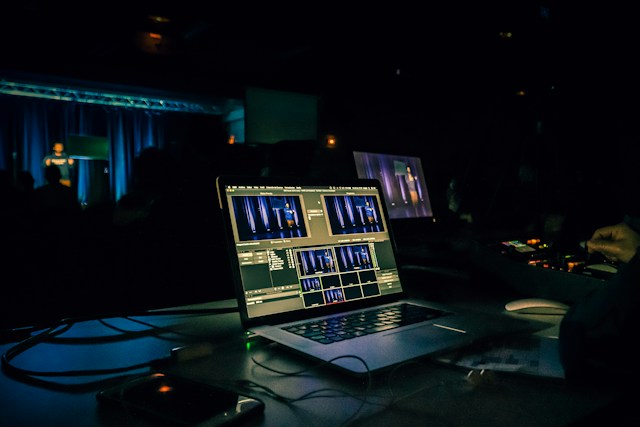
Quick answer: A smooth live streaming event requires five core components: a reliable camera, quality audio equipment, proper lighting, a capable computer or encoder, and stable internet connectivity. Beyond these essentials, accessories like a stream deck, capture card, and backup power sources help prevent technical disruptions. The right combination depends on your budget, venue, and stream complexity.
Live streaming has moved far beyond a webcam and a prayer. Whether you’re hosting a product launch, streaming a conference, or building a gaming channel, your audience expects crisp visuals, clear audio, and zero buffering. The gap between an amateur stream and a professional one almost always comes down to equipment choices made before the broadcast even starts.
This guide walks through every piece of hardware and software you need to pull off a polished live stream, from the camera pointed at your face to the internet connection carrying your signal to viewers. You’ll also find guidance on choosing between budget-friendly options and professional-grade setups, depending on what your event actually demands.
What camera should you use for live streaming?
Your camera is the first thing viewers notice, so it deserves careful consideration. The options generally fall into three categories:
Webcams work well for solo creators, small meetings, or casual streams. Modern webcams offer 1080p resolution and autofocus, making them a reasonable starting point for anyone testing the waters of live streaming.
DSLR or mirrorless cameras deliver noticeably sharper images, better low-light performance, and depth-of-field effects that make subjects pop against blurred backgrounds. Many creators repurpose cameras they already own for photography, pairing them with an HDMI capture card to feed video into streaming software.
PTZ (pan-tilt-zoom) cameras suit multi-camera productions like conferences or panel discussions. They can be controlled remotely, letting a single operator switch angles without physically moving equipment.
Choose a webcam if you’re streaming casually or on a tight budget. Choose a DSLR or mirrorless setup if visual quality matters more than mobility. Choose PTZ cameras if your event involves multiple speakers or angles that need to shift during the broadcast.
Why does audio equipment matter more than most people think?
Viewers tolerate mediocre video far more than they tolerate bad audio. A grainy picture is forgivable; crackling or inaudible sound usually isn’t. Prioritize these audio components:
- External microphones: USB condenser microphones work well for solo streamers sitting close to their desk. Lavalier microphones suit presenters who move around, while shotgun microphones capture directional audio for interviews or on-location events.
- Audio interfaces: If you’re using XLR microphones rather than USB ones, you’ll need an audio interface to convert the analog signal into something your computer can process.
- Headphones: Monitor your audio in real time to catch issues like background noise or clipping before they reach your audience.
Skipping a dedicated microphone is one of the most common mistakes new streamers make. Built-in laptop or camera microphones pick up room echo, keyboard clatter, and ambient noise that instantly makes a stream feel unprofessional.
How much lighting do you actually need?
Lighting with dmp.sg shapes how your camera renders color, contrast, and detail. Without it, even expensive cameras produce flat, grainy footage.
A simple three-point lighting setup—key light, fill light, and backlight—remains the standard for a reason. The key light illuminates your face from one angle, the fill light softens shadows from the opposite side, and the backlight separates you from the background.
For creators on a budget, ring lights or softbox panels can approximate this effect with just one or two fixtures. LED panels with adjustable color temperature are especially useful for matching your lighting to different times of day or venue conditions.
Natural light from a window can work for casual streams, but it’s inconsistent—clouds, time of day, and weather all affect it. For recurring or professional streams, invest in adjustable artificial lighting you can control precisely.
What computer or encoder specs do you need for streaming?
Your computer does the heavy lifting of encoding video and audio into a format that platforms like YouTube, Twitch, or a custom RTMP server can broadcast. Weak hardware leads to dropped frames, stuttering, and crashes mid-stream.
Look for:
- A multi-core processor: Encoding is CPU-intensive, especially if you’re running streaming software alongside other applications like slides or chat overlays.
- A dedicated graphics card: GPUs can offload encoding tasks (via NVENC or similar technology), freeing up your CPU for other processes.
- At least 16GB of RAM: This keeps your system responsive even while running streaming software, browser tabs, and other tools simultaneously.
If you’d rather not tie up your computer’s resources, a hardware encoder—a standalone device that handles encoding independently—can take that load off your machine entirely. This is especially useful for larger productions involving multiple cameras or sources.
Why is internet connectivity the most overlooked requirement?
You can have the best camera, lights, and microphone in the world, and your stream will still fail if your internet connection can’t keep up. Live streaming demands consistent upload speed, not just fast download speed.
A wired Ethernet connection is strongly preferred over Wi-Fi. Wireless connections are more susceptible to interference, signal drops, and bandwidth competition from other devices on the network.
As a general guideline, your upload speed should be roughly 1.5 to 2 times your target streaming bitrate to leave headroom for fluctuations. If you’re streaming at 1080p, that typically means ensuring at least 5-6 Mbps of stable upload bandwidth, though actual requirements vary by platform and encoding settings.
For high-stakes events, consider a backup internet connection—such as a mobile hotspot—that can take over if your primary connection fails mid-broadcast.
What software and accessories help streamline production?
Hardware captures your content, but software and accessories determine how smoothly everything comes together.
Streaming software like OBS Studio, Streamlabs, or vMix lets you combine multiple video and audio sources, add overlays, and switch between scenes. OBS Studio is free and widely used, while vMix offers more advanced features for complex, multi-camera productions.
Capture cards convert HDMI output from cameras or gaming consoles into a signal your computer can process through streaming software.
Stream decks are customizable control panels with programmable buttons, letting you switch scenes, mute audio, or trigger graphics without fumbling through menus during a live broadcast.
Tripods and camera mounts keep your shots stable, which matters even more during longer events where handheld footage becomes fatiguing to watch.
How do you prepare for technical failures during a live stream?
Even with the best equipment, things go wrong. Preparing backup options reduces the odds that a single failure derails your entire event.
- Keep a spare microphone and set of batteries on hand.
- Use an uninterruptible power supply (UPS) to protect against power outages, particularly important for events run outside a controlled studio.
- Test your full setup—camera, audio, lighting, and internet—at least 30 minutes before going live.
- Record a local backup of your stream in case of platform or connectivity issues.
Running a quick rehearsal with your actual equipment, in the actual location, catches problems that are much harder to fix once you’re live.
Building your streaming setup around your event, not the other way around
There’s no single “correct” equipment list for live streaming because requirements shift based on your format, budget, and audience expectations. A solo creator streaming gameplay needs a different setup than a company broadcasting a hybrid conference with multiple speakers and camera angles.
Start with the basics: a reliable camera, a dedicated microphone, adequate lighting, and a stable internet connection. These four elements solve the majority of quality issues that plague amateur streams. From there, layer in a capable computer or hardware encoder, streaming software suited to your production complexity, and accessories like a stream deck or capture card as your needs grow.
Before your next event, run through your full setup end-to-end, test under real conditions, and build in backups for your most critical components. The goal isn’t owning the most expensive gear—it’s making sure nothing interrupts the connection between you and your audience.
Frequently Asked Questions
How much does it cost to set up live streaming equipment?
A basic setup with a webcam, USB microphone, and ring light can cost under $200. A mid-range setup with a mirrorless camera, XLR microphone, and LED panels typically runs $800 to $2,000. Professional multi-camera productions with PTZ cameras and hardware encoders can exceed $5,000.
Can you live stream using just a smartphone?
Yes. Modern smartphones have capable cameras and microphones suitable for casual streams. Pairing a smartphone with an external microphone and a small tripod significantly improves quality without a major investment.
What internet speed do I need for live streaming?
Your upload speed should be at least 1.5 to 2 times your target streaming bitrate. For 1080p streaming, aim for a minimum of 5-6 Mbps of stable upload bandwidth, with more headroom if possible.
Is a capture card necessary for live streaming?
A capture card is only necessary if you’re using a camera or device (like a DSLR or gaming console) that doesn’t connect directly to your computer via USB. Many webcams and some newer cameras skip this requirement entirely.
What’s the biggest mistake beginners make with streaming equipment?
Prioritizing camera quality over audio quality. Viewers are far more forgiving of imperfect video than they are of poor or inconsistent sound.